Have you ever opened a website and seen the message “504 Gateway Time-out”? This error can prevent visitors from accessing a website, interrupt their experience, and affect business operations. If you manage a WordPress website or run an online business, understanding this error can help you resolve it quickly.
A 504 gateway time-out error occurs when a server acting as a gateway or proxy does not receive a timely response from another server needed to complete a request. It may happen because of server overload, network problems, slow database queries, or incorrect server settings.
In this guide, we will explain what a 504 Gateway Timeout error means, what causes it, and how to fix it step by step.
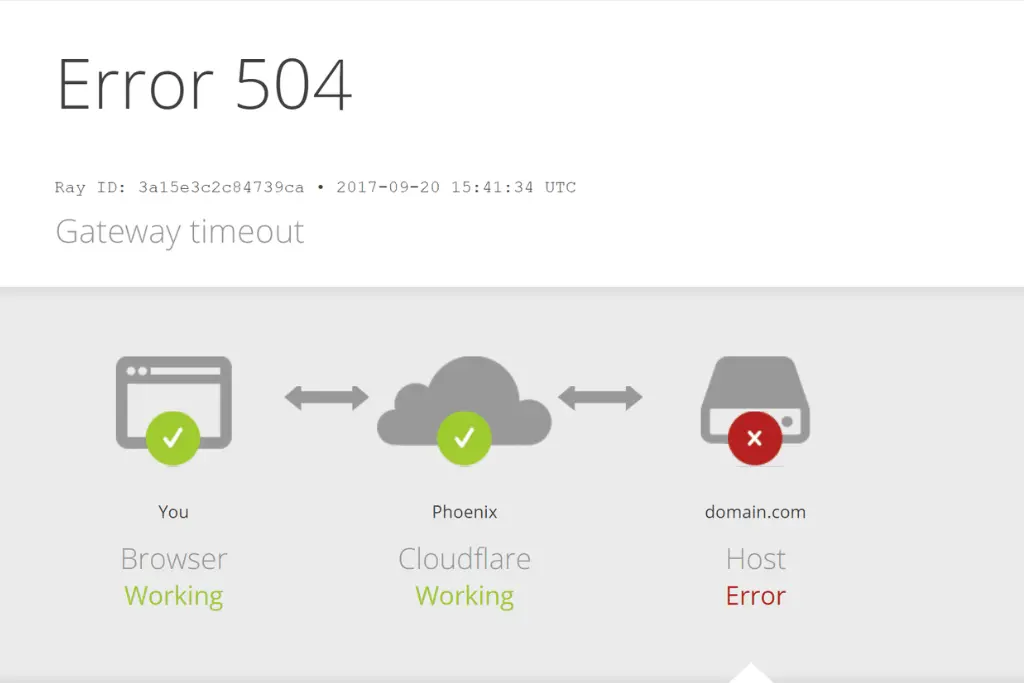
What Is a 504 Gateway Timeout Error?
A 504 Gateway Timeout error is an HTTP status code that indicates a server did not receive a response from an upstream server within the expected time.
When someone visits a website, the request may pass through several systems, such as a web server, proxy server, content delivery network (CDN), or application server. If one of these systems waits too long for another server to respond, it may return a 504 error.
For example, you may open a WordPress website, but its server takes too long to process the request. Instead of loading the page, your browser displays a 504 Gateway Timeout message.
This error usually points to a server-side communication or response-time problem rather than an issue with your browser alone.
What Does a 504 Gateway Timeout Error Look Like?
A 504 error may appear with different messages depending on the hosting provider, server software, or CDN.
Common variations include:
- 504 Gateway Timeout
- HTTP Error 504
- Gateway Time-out
- 504 Gateway Time-out
- Gateway Timeout Error
- The server didn’t respond in time
Although the wording may differ, these messages generally indicate that a gateway or proxy did not receive a timely response from another server.
What Causes a 504 Gateway Timeout Error?
Several technical issues can cause a 504 Gateway Timeout error. Identifying the correct cause is the first step toward fixing it.
1. Server Overload
A server may receive more requests than it can handle. Heavy traffic, insufficient server resources, or resource-intensive applications can slow down responses and trigger a 504 error.
2. Slow Database Queries
Websites often rely on databases to retrieve content, user information, and product details. If a database query takes too long, the application server may not respond before the gateway timeout limit is reached.
3. Network Connectivity Problems
Communication problems between servers can prevent requests from reaching their destination or returning a response on time. Temporary network failures or routing issues may cause this error.
4. WordPress Plugin or Theme Issues
Some WordPress plugins and themes may run resource-intensive scripts or conflict with other components. Poorly optimized code can slow down page requests and sometimes lead to gateway timeouts.
5. Incorrect Server Configuration
Incorrect proxy settings, timeout values, PHP configuration, or web server settings may cause requests to fail when the application takes longer than expected to respond.
6. CDN or Proxy Issues
A content delivery network (CDN) or reverse proxy sits between visitors and the origin server. If the origin server responds too slowly or the connection fails, the CDN or proxy may return a 504 error.
7. Third-Party API Delays
Websites may depend on external services for payments, booking systems, data, or other functions. If an external API responds slowly, a request may exceed the configured timeout limit.
How to Fix a 504 Gateway Timeout Error
The right solution depends on what is causing the problem. Follow these troubleshooting steps to identify and resolve the issue.
1. Refresh the Website
Sometimes, a 504 Gateway Timeout error occurs because of a temporary server problem.
Try refreshing the page after a short wait. You can also open the website in a new tab to see whether it loads correctly.
If the error disappears, it may have been a temporary issue. If it continues, move to the next step.
2. Check Your Internet Connection
Although a 504 error usually involves server communication, checking your connection can help rule out local network problems.
Try these steps:
- Open another website to confirm your internet connection works.
- Switch to another network if possible.
- Restart your router if other websites are also failing.
- Try accessing the affected website from another device.
If the problem affects only one website, the issue is more likely related to that website or its server infrastructure.
3. Clear Your Browser Cache
A browser cache stores website resources to help pages load faster. Clearing it can help rule out browser-related problems, although cached files are not a common direct cause of a genuine 504 response.
To clear your browser cache in Google Chrome:
- Open Chrome.
- Press Ctrl + Shift + Delete on Windows.
- Select a suitable time range.
- Select cached images and files.
- Click Delete data.
- Reopen the website.
You can also test the page in an incognito window.
4. Check Your Website Hosting Server
If you own the website, check whether your hosting server is overloaded or experiencing an outage.
Review your hosting provider’s status page and server resource usage. Look for high CPU usage, memory limits, or unusual traffic spikes.
If the server is overloaded, consider optimizing your website, reducing unnecessary processes, or upgrading your hosting plan when appropriate.
5. Disable WordPress Plugins Temporarily
If your WordPress website displays a 504 error, a plugin may be contributing to the problem.
Before making changes, back up your website if possible.
Follow these steps:
- Open your WordPress dashboard if it is accessible.
- Go to Plugins.
- Deactivate plugins temporarily, preferably in a controlled troubleshooting process.
- Reload the affected page.
- Reactivate plugins one at a time to identify whether a specific plugin triggers the error.
If you cannot access the dashboard, you may need to use your hosting file manager or FTP to rename the relevant plugin folder temporarily. Do this carefully, as disabling plugins can affect website functionality.
If the error continues after plugins are ruled out, check the active theme, server logs, and application performance.
6. Review PHP and Server Timeout Settings
WordPress websites use PHP to process requests. If a script runs longer than the allowed time, it may fail or contribute to a gateway timeout.
A developer or hosting administrator can review relevant settings, including PHP execution limits, PHP-FPM settings, and web server or reverse proxy timeouts.
Increasing a timeout may help when a legitimate task needs more time. However, it will not solve the underlying issue if the server is overloaded, a database query is inefficient, or a script is stuck.
Avoid changing server configuration without understanding your hosting environment.
7. Check CDN and Proxy Settings
If your website uses a CDN or reverse proxy, check whether it can connect successfully to the origin server.
You should:
- Check the CDN provider’s service status.
- Review origin server connectivity.
- Check DNS and firewall settings.
- Review CDN and web server error logs.
- Confirm that origin server responses are arriving within the configured limits.
Do not disable security features or make broad firewall changes without confirming the cause. If the problem is related to the CDN, consult its documentation or support team.
8. Optimize Database Queries
Slow database queries can delay page generation and cause requests to exceed timeout limits.
To improve database performance:
- Remove unnecessary plugins and unused features.
- Review slow-query logs when available.
- Optimize inefficient database queries.
- Clean up unnecessary temporary data where appropriate.
- Use suitable caching and database optimization techniques.
Always back up your database before making structural changes or running potentially destructive cleanup operations.
9. Contact Your Hosting Provider
If you have tried basic troubleshooting and the error continues, contact your hosting provider.
Share the affected URL, the time the error occurred, any recent website changes, and relevant error logs. Ask the support team to check server load, upstream response times, PHP errors, database performance, and proxy configuration.
Your hosting provider may be able to identify a server-side issue that cannot be resolved from the WordPress dashboard.
How to Fix a 504 Gateway Timeout Error in WordPress
WordPress websites can experience 504 errors when plugins, themes, databases, external services, or server resources slow down requests.
If you use WordPress, follow this practical checklist:
- Confirm whether the error affects one page or the entire website.
- Check your hosting provider’s status and resource usage.
- Review recent plugin, theme, or website changes.
- Test plugins and themes carefully.
- Check PHP and web server error logs.
- Review slow database queries and external API requests.
- Contact your hosting provider if the cause remains unclear.
If the error started immediately after installing a plugin or updating your website, investigate that change first.
Avoid repeatedly increasing timeout limits without identifying the source of the delay. The goal is to make the server respond efficiently, not simply allow it to wait longer.
If your WordPress website continues to experience technical issues, professional WordPress web design services can help you build a reliable, user-friendly website with better performance.
How to Prevent Future 504 Gateway Timeout Errors
Although not every server timeout can be prevented, good website maintenance can reduce the risk.
Monitor Website Performance
Use website monitoring tools to detect downtime and slow responses. Regular monitoring helps you identify recurring issues before they affect more visitors.
Keep WordPress Updated
Update WordPress core, plugins, and themes regularly. Before major updates, maintain a backup and test changes where possible.
Use Reliable Hosting
Choose hosting that provides sufficient resources for your website’s traffic and technical requirements. Growing websites may need a more capable hosting environment.
Optimize Website Speed
Compress images, remove unnecessary scripts, use appropriate caching, and reduce inefficient code. A faster website can reduce server workload and improve the user experience.
Monitor Server Resources
Track CPU, memory, database performance, and traffic levels. Resource monitoring can help identify capacity problems before they lead to repeated timeouts.
Review Logs Regularly
Server and application logs can reveal slow requests, plugin problems, database delays, and repeated connection failures.
Does a 504 Gateway Timeout Error Affect SEO?
A single, temporary 504 error does not automatically cause lasting SEO damage. However, repeated or prolonged server errors can prevent search engines from accessing important pages.
If Googlebot repeatedly encounters server errors, crawling may slow down, and persistently unavailable pages can eventually affect their visibility in search results.
To understand how search engines discover, crawl, and index web pages, read our guide to search engine basics.
To reduce the risk:
- Fix recurring server timeouts quickly.
- Monitor important landing pages and blog posts.
- Check Google Search Console for crawl and indexing issues.
- Review server logs to understand when errors occur.
- Ensure important pages return the correct HTTP status codes when they are available.
Website reliability is an important part of technical SEO. Keeping your website accessible helps visitors and search engines reach your content.
Conclusion
A 504 gateway time-out error occurs when a gateway or proxy does not receive a response from another server within the expected time. Server overload, slow database queries, WordPress plugin issues, and network problems are common causes.
Start with simple troubleshooting, then investigate server resources, application performance, and configuration settings if the error continues. Regular website monitoring, reliable hosting, and technical maintenance can help reduce recurring problems.
Need help improving your website’s speed, reliability, and technical performance? Webnizers can help you identify website issues and improve your site’s overall performance. Explore our website development and SEO services to build a more reliable online presence.
Faqs
1. What is a 504 Gateway Timeout error?
A 504 Gateway Timeout error occurs when a gateway or proxy server does not receive a timely response from an upstream server needed to complete a request.
2. What is the main cause of a 504 Gateway Timeout?
Common causes include server overload, slow database queries, network connectivity problems, incorrect server configuration, and delays from external services.
3. How do I fix a 504 Gateway Timeout error?
Start by refreshing the page and checking whether the issue is temporary. If you manage the website, investigate hosting resources, plugins, server logs, database performance, and CDN or proxy settings.
4. Why does my WordPress website show a 504 error?
A WordPress website may show a 504 error because of a slow plugin, theme issue, overloaded server, inefficient database query, or delayed external API response.
5. Can a 504 Gateway Timeout error affect Google rankings?
A temporary error is unlikely to cause lasting ranking damage by itself. However, frequent or prolonged errors can interfere with crawling and may affect search visibility if important pages remain unavailable.